Default username and password
User: USERID
Password PASSW0RD
Default username and password
User: USERID
Password PASSW0RD
|
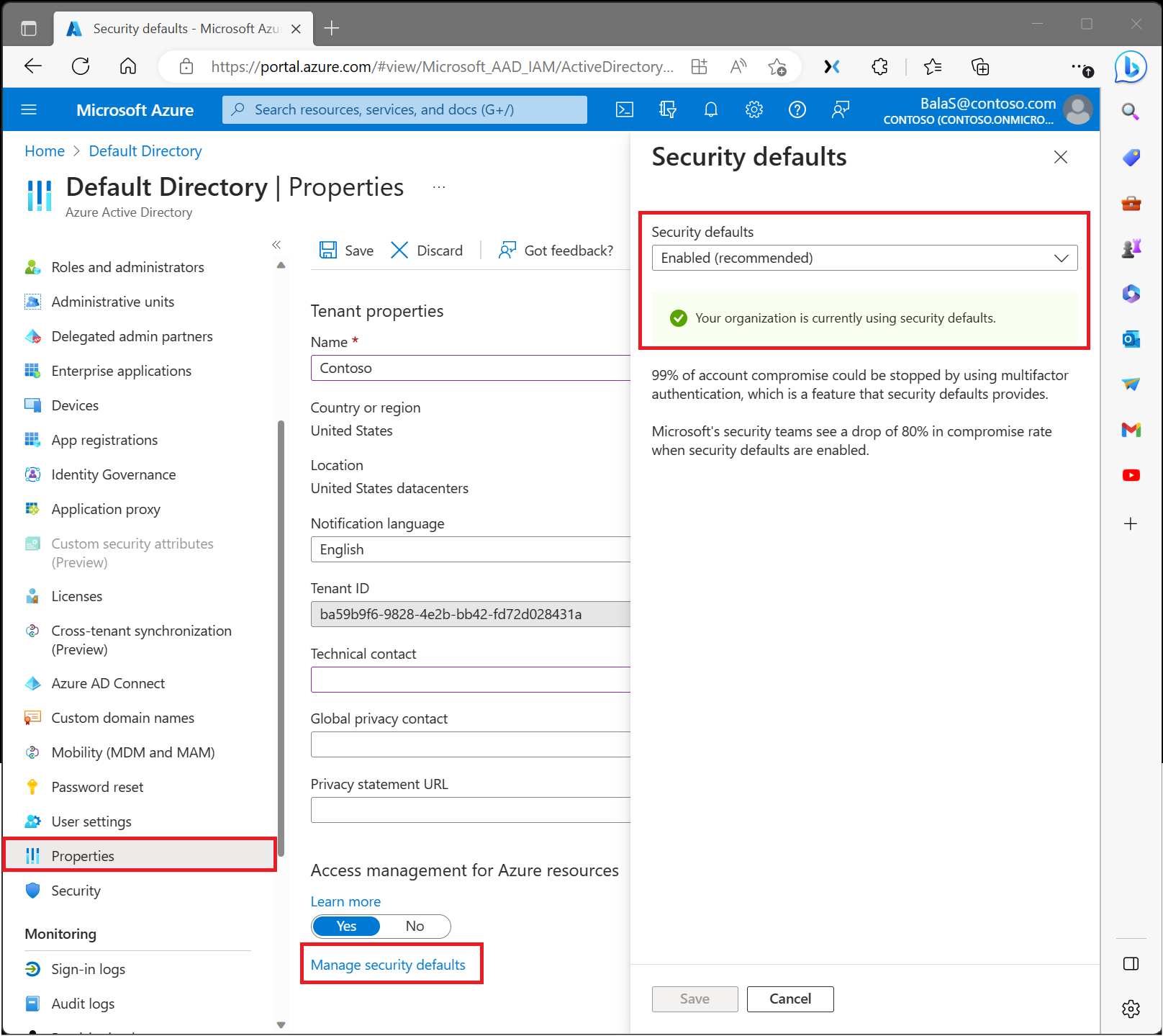
Managing security can be difficult with common identity-related attacks like password spray, replay, and phishing becoming more and more popular. Security defaults make it easier to help protect your organization from these attacks with preconfigured security settings:
SetUserFTA.exe .pdf Applications\Acrobat.exe
(Get-Item “FILE PATH”).LastWriteTime=(“31-12-2021 15:00:00”)
Open Start, type: powershell
Right click PowerShell
Click Run as administrator
At the command prompt, type the following then hit Enter:
Get-AppXPackage *WindowsStore* -AllUsers | Foreach {Add-AppxPackage -DisableDevelopmentMode -Register “$($_.InstallLocation)\AppXManifest.xml”}
Exit Powershell then restart.
Check if you can open the Store.
Open your dashboard.
Select the Settings (gear) icon in the top right.
Under MyAnalytics, select Settings.
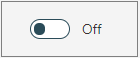
For MyAnalytics, change the setting to Off.
Install-Module -Name ExchangeOnlineManagement
Import-Module ExchangeOnlineManagement
Connect-ExchangeOnline
Enable-OrganizationCustomization
New-ManagementRoleAssignment –Role “Mailbox Import Export” –User “user name”
Get-ManagementRoleAssignment –Role “Mailbox Import Export” | FL RoleAssigneeName, Name
Disconnect-ExchangeOnline
 The script below will fix the incorrect folder class property for you so that it will become a regular mail folder again just like all the others.
After running the script, you’ll immediately see all your emails again, have Follow Up flag support and all other aforementioned issues will be gone. You don’t even need to restart Outlook!
The script allows you to fix a single folder, a folder and its subfolders or your entire mailbox at once. It will automatically recognize folders that don’t need any fixing and won’t make any changes to these either.
FixImportedIMAPFolders.vbsClick on Outlook in the Taskbar to see the “Select Folder” dialog.

You’ll now get a prompt whether you want to include the subfolders as well. If you don’t see this prompt, click on the script icon in your Taskbar.

Click on the WScript icon in the Taskbar…
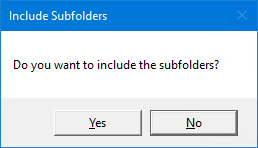
…and select your fixing preference.
After the script is done, you’ll get a notification with how many folders have been fixed.
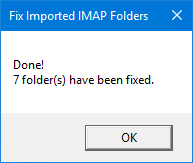
The contents of all the fixed folders should now be visible again and you should no longer have any IMAP view or any of the other aforementioned issues.
If you had the folder still selected in Outlook, select a different folder and then go back to the fixed folder so that Outlook can refresh the view and you can see that it is fixed.
Bare metal restore domain controller windows 2016 there are currently no logon servers

