IP Calculator online
May 4th, 2009Get MX record for domain name
May 4th, 2009Event ID: 1000 is logged in the Application event log when you try to work in Outlook 2003 on a computer that is running Terminal Services
May 4th, 2009- You try to start Outlook 2003.
- You try to open or to import a personal folders (.pst) file in Outlook 2003.
- You try to create a new Outlook data file in Outlook 2003.
In this scenario, Outlook 2003 unexpectedly quits and the following event ID is logged in the Application event log:
Event Source: Microsoft Office 11
Event Category: None
Event ID: 1000
Date: date
Time: time
User: username
Computer: computername
Description: Faulting application outlook.exe, version 11.0.6353.0, stamp 408f2937, faulting module mspst32.dll, version 11.0.6357.0, stamp 40b65fc5, debug? 0, fault address 0x0001b745.
Additionally, you may receive the following error message:
RESOLUTION
To resolve this issue, disable the Physical Address Extension (PAE) (/pae) switc…
If the /pae switch is not present in the Boot.ini file, the switch may be automatically set. To disable the /pae switch, add the /nopae switch in the Boot.ini file.
For more information about how to edit the Boot.ini file, click the following article number to view the article in the Microsoft Knowledge Base:
For more information about the /nopae switch, visit the following Microsoft Web site:
For more information about how to prevent the Physical Address Extension (PAE) kernel from loading, click the following article number to view the article in the Microsoft Knowledge Base:
Additionally, there is a known issue if the following conditions are true:
- You try to start Outlook 2003 on a computer that is running Microsoft Windows Server 2003.
- The computer that is running Windows Server 2003 has 4 gigabytes (GB) or more of random access memory (RAM).
For more information about how to resolve this issue, click the following article number to view the article in the Microsoft Knowledge Base:
Redelegering (flytning) af .dk domæne til GratisDNS
May 4th, 2009How to Give a User Full Access to Another User’s Mailbox
April 19th, 2009To grant a user full access to a mailbox (as shown in the following figure), perform the following procedure.
With full mailbox access, User A logs on to User B’s mailbox
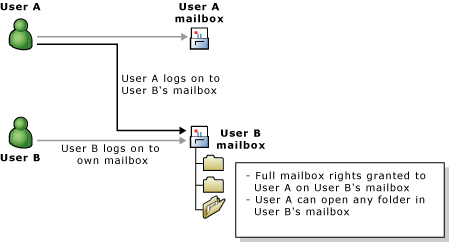
 Before You Begin Procedure To give a user full access to another user’s mailbox
- In Active Directory Users and Computers, right-click the organization domain name, point to View, and then click Advanced Features.
- Click the Users container or the organizational unit where the user is located.
- Right-click the user account, and then click Properties.
- Click Exchange Advanced, and then click Mailbox Rights.
- Click Add to add a user to the list of users that are allowed to access this mailbox.
- In the permissions list, for the Full Mailbox Access permission, select the Allow check box.
Delete Failed DCs from Active Directory
April 14th, 2009What’s in the Desktop Experience feature
April 4th, 2009The Desktop Experience feature includes the following Windows Vista components and features:
- Windows Calendar
- Windows Mail
- Windows Media Player
- Windows Aero™ and other desktop themes
- Video for Windows (AVI support)
- Windows Photo Gallery
- Windows SideShow™
- Windows Defender
- Disk Cleanup
- Sync Center
- Sound Recorder
- Character Map
Installing or uninstalling the Desktop Experience feature
You can install or uninstall the Desktop Experience feature with the Initial Configuration Tasks Wizard or Server Manager.
| To install Desktop Experience with Initial Configuration Tasks Wizard |
- In the Customize This Server section, click Add features.
- Select the Desktop Experience check box, and then click Next.
- Complete the wizard by clicking Install.
| To install Desktop Experience with Server Manager |
- Open Server Manager: click Start, point to Administrative Tools, and click Server Manager.
Notes - You can also open Server Manager by typing the following at a command prompt:
- servermanager.msc
- In the Features Summary section, click Add features.
- Select the Desktop Experience check box, and then click Next.
- Complete the wizard by clicking Install.
You can uninstall Desktop Experience at any time by using either method above to start the Add Features Wizard. When the wizard opens, clear the Desktop Experience check box, click Next, and then click Remove to complete the wizard.
Restart
Windows 2008 Terminal Server = NO
Windows 2003 Terminal Server = YES
Description of the Excel 2007 hotfix package KB942430
April 3rd, 2009Issue that the hotfix package fixes
This hotfix fixes the following issues that were not previously documented in a Microsoft Knowledge Base article:
- The Regression tool in the Analysis ToolPak for Microsoft Office Excel 2007 does not create charts correctly. For example, when you try to use the Regression tool to create several charts, the charting engine only passes through data one time and only creates one chart.
- Danish Excel shortcuts like CTRL+C (copy) and CTRL+V (paste) incorrectly end up calling the Insert/Delete Cell dialog box. Other shortcuts may also be affected. The issue is inconsistent. However, when you encounter the issue, you must restart Excel
Siminn SMTP
April 1st, 2009smtp.siminn.dk